Authentication
Most of an application’s interesting functionality usually lives behind a login (user accounts, dashboards, etc), and an unauthenticated scan only sees the public pages. To reach the areas behind a login, Oneleet Application Security can authenticate in one of two ways:
- Browser-based login: it drives a real browser to your login page and signs in with a username and password, just like a user. Use this when your app has a standard login form.
- Static request headers: it attaches a fixed header, such as a bearer token or session cookie, to every request. Use this when your app doesn’t sign in with a username and password or as a fallback to browser-based login.
Browser-based login
Section titled “Browser-based login”This method authenticates by driving a browser to your login page, filling in credentials, and submitting the form. Because it uses a real browser, it works with modern, JavaScript-heavy login pages, not only simple HTML forms.
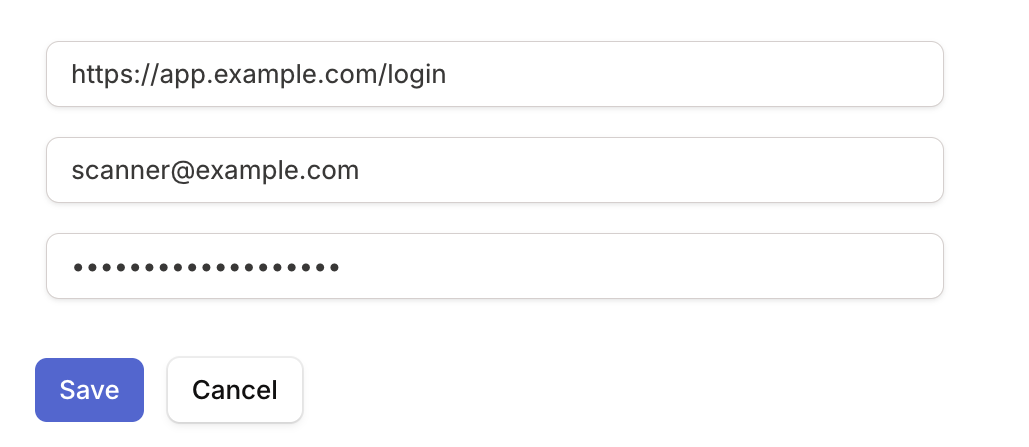
You configure it with two things:
- Login page URL: the page that has your login form.
- Credentials: a username and password for the account to log in as.
 2. The username field is chosen from the visible text and email inputs: if there’s just one input on the page, it’s used directly; when there are several candidates, it prefers the one in the same form as the password field, then one whose name or id looks username-like (user, email, name, and similar), and otherwise the first text/email field.
How the login form is filled
Section titled “How the login form is filled”When a scan starts, the browser opens your login page URL, waits for it to load, then checks the page for the login fields:
- The password field is the first visible input with
type="password", or failing that one whose name or id contains “password”. - The username field is chosen from the visible text and email inputs: if there’s just one input on the page, it’s used directly; when there are several candidates, it prefers the one in the same form as the password field, then one whose name or id looks username-like (user, email, name, and similar), and otherwise the first text/email field.
- It fills both fields and submits by pressing return/enter in the password field and, if that doesn’t log in, finding and clicking the form’s submit button.
- Some apps ask for the username first and reveal the password on the next page. Seeing a username but no password, it submits the username alone, waits for the next page, then fills in the password.
- If it can’t log in on your page but finds a login/sign-in link, it clicks it and goes back to step 1 on the new page.
Confirming the login worked
Section titled “Confirming the login worked”Run a scan readiness check and step through the login attempt screenshots. A successful login moves from the login page to an authenticated page, such as a dashboard or account page, while a failed one usually stays on the login page and displays your app’s error message for an invalid username or password.
When the form can’t be found
Section titled “When the form can’t be found”If Oneleet Application Security reports that it couldn’t locate the username or password field, it’s almost always one of these:
- The URL doesn’t point at the login form. Confirm the configured URL actually loads the form, or links to it, rather than a marketing page or a post-login redirect.
- The form uses non-standard markup. Unusual field types or names can defeat automatic detection. In this case, you can authenticate with static request headers instead, which bypasses the login form requirement.
Static request headers
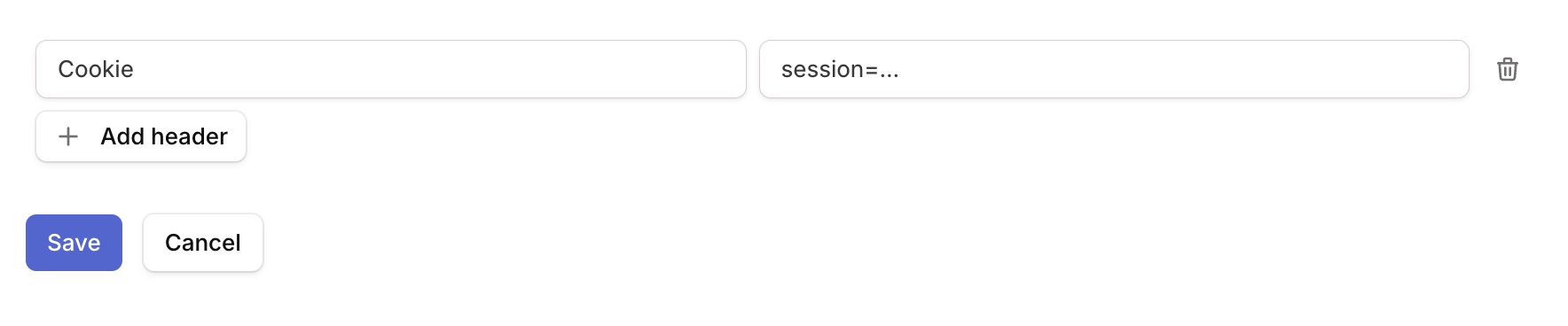
Section titled “Static request headers”You can authenticate by sending a custom header on every request instead of logging in through a form.
In the application’s configuration, add one or more headers as name/value pairs. Each header is attached verbatim to every request the scan makes. Common examples:
- Bearer token:
Authorization: Bearer <token> - Session cookie:
Cookie: session=<value>
There’s no login step to renew the header, so it has to stay valid for the whole scan. Issue a token with a long enough lifetime to outlast the scan.