Pull request checks
With pull request checks on, Oneleet scans pull requests that target a repository’s target branch and reports the result as a check on the pull request. Checks work on GitHub, and on GitLab, which calls pull requests merge requests and shows each check as a commit status.
The code security check, Oneleet Code Security Scan, fails when a pull request adds new code security findings. Findings already on the target branch never fail it, so you can turn on pull request checks in a codebase with a backlog of findings without blocking anyone’s work. A separate check, Oneleet Dependency Scan, looks for new vulnerabilities in your dependencies.
Only workspace admins can change pull request check settings. Checks on GitLab merge requests are in beta. To use them, contact Oneleet support and we’ll turn them on for your workspace.
Turn on pull request checks
Section titled “Turn on pull request checks”Turn on pull request checks for each repository separately:
- Make sure the repository is added to Code Security through the GitHub (Code) or GitLab integration.
- On the Code security page, click Configure, open the Repositories tab, and select the repository.
- Check Automatically scan pull requests for new findings under GitHub pull request checks, or Automatically scan merge requests for new findings under GitLab merge request checks. The checkbox only appears while automatic scanning is on for the repository.
Until the first scan of the repository’s target branch completes, Oneleet Code Security Scan has no baseline to compare against, so it doesn’t fail any pull request. See What developers see for the result each provider shows.
GitLab requirements
Section titled “GitLab requirements”Your GitLab connection’s token needs the api scope, and the token’s owner needs at least the Maintainer role on the project. If either is missing, turning on a check still shows a success message, but no checks run. On gitlab.com, group access tokens need a Premium or Ultimate subscription.
Which pull requests are scanned
Section titled “Which pull requests are scanned”Oneleet only scans pull requests that target the repository’s target branch. Drafts aren’t scanned until they’re marked ready for review, and Oneleet doesn’t scan GitLab merge requests from forks.
How “new” is decided
Section titled “How “new” is decided”Oneleet Code Security Scan compares each pull request with its baseline, the most recent scan of the repository’s target branch. When a pull request is scanned:
- Only the files the PR changes are examined, and only findings on lines the PR added (or in files it added) are considered.
- Findings are matched against the baseline, so a finding whose code only shifts up or down in its file because lines above it changed, or whose file is renamed, doesn’t count as new. This is an imperfect heuristic check.
- Findings suppressed by an ignore rule don’t count as new.
While the code security check is on, we scan your target branch on every push as well as on the usual daily schedule, so the baseline stays up to date.
What developers see
Section titled “What developers see”Oneleet Code Security Scan reports these results:
| Scan outcome | GitHub | GitLab |
|---|---|---|
| No new findings | Pass | Pass |
| At least one new finding | Fail | Fail |
| No completed scan of the target branch yet | Neutral | Pass, with “No baseline scan available” |
| The scan itself failed | Fail, with the error in the summary | Fail, with “Commit scan failed” |
A failing check summarizes the new findings by severity. Either fix the findings in the pull request, or merge it and then resolve the findings (as False positive, Accepted risk, and so on) when they appear in the next scan of the target branch. Each time you push to the pull request, Oneleet rescans the latest commit in the push and reports a new check result.
Findings on GitHub
Section titled “Findings on GitHub”By default, each finding appears as an annotation on the offending lines in the pull request’s Files changed and Checks tabs. The annotation gives the finding’s severity, confidence, and rule ID, plus a link to remediation guidance when the rule has one.
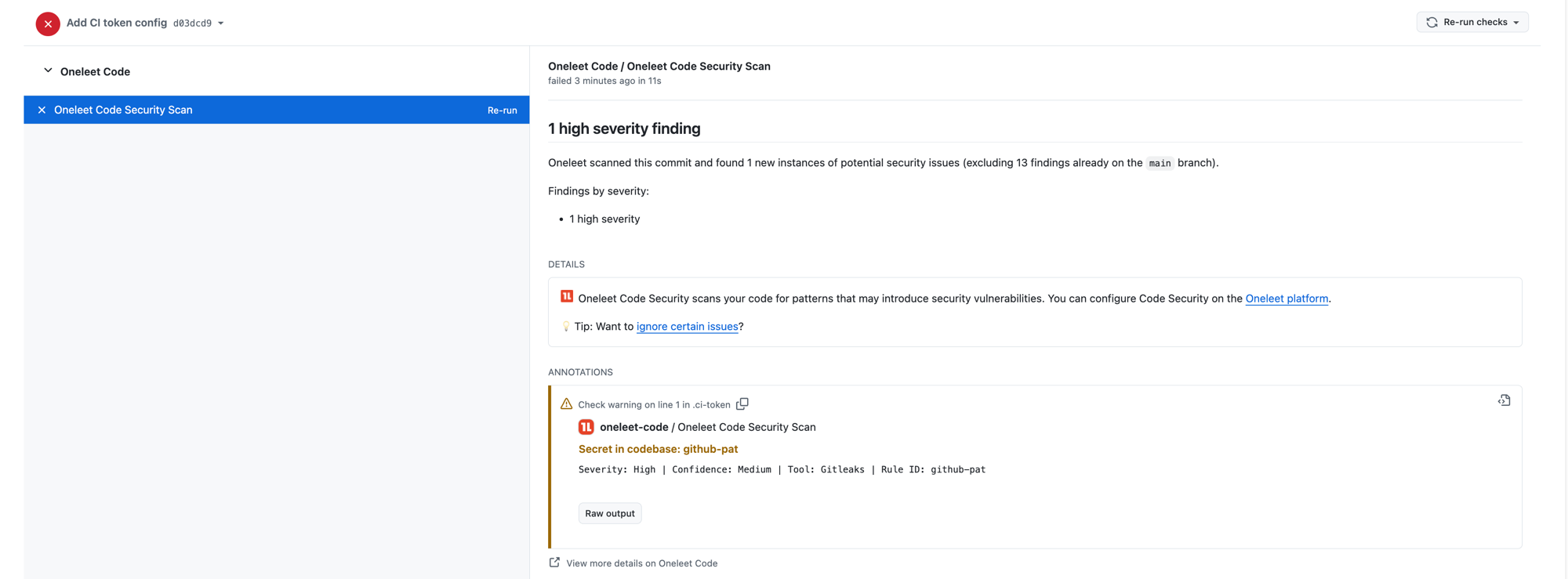
To post each finding as a review thread instead, turn on review comments.
Findings on GitLab
Section titled “Findings on GitLab”The code security check always posts each new finding as a discussion thread on the finding’s lines, plus one summary comment on the merge request. When those lines aren’t part of the merge request’s diff, the thread is posted on the merge request itself instead, starting with the file path and line. GitLab has no annotations and no review comments setting. Oneleet updates the threads on later pushes, as described in How threads change on later pushes.
Report findings in review comments
Section titled “Report findings in review comments”To post each new finding as a review thread on a GitHub pull request instead of as an annotation, turn on review comments for the repository:
- On the Code security page, click Configure, open the Repositories tab, and select the repository.
- Under GitHub pull request checks, make sure Automatically scan pull requests for new findings is checked.
- Check Report findings in review comments instead of check annotations.
While pull request scanning is off, the review comments checkbox is unavailable and shows as unchecked, but Oneleet keeps your earlier choice and restores it when you turn scanning back on.
With the setting on, the Oneleet GitHub App posts each new finding as its own review thread, which appears in the pull request’s discussion and on the finding’s lines in the Files changed tab. When those lines aren’t part of the pull request’s diff, the thread is attached to the file as a whole instead.
The first comment in each thread gives the finding’s severity, confidence, tool, and rule ID, plus a help link when the rule has one. Below that, a What should I do now? section tells the developer to either fix the issue in the pull request, or merge and then resolve the finding when it shows up in the next scan of the target branch.
The Oneleet Code Security Scan check passes or fails as described above, with the same summary but no annotations. If GitHub rejects a thread, the check reports its result anyway, and the next scan of the pull request tries posting the thread again.
Turning the setting off doesn’t remove existing threads. From the next scan on, findings go back to annotations and no new threads are posted, but Oneleet still resolves threads whose findings are gone and leaves the rest open.
How threads change on later pushes
Section titled “How threads change on later pushes”After each push, Oneleet rescans the pull request and updates its threads to match the new results. This covers threads on GitLab merge requests, and on GitHub pull requests with review comments turned on.
- A finding that’s still there keeps its existing thread, even if its code moved to different lines.
- A new finding gets a new thread.
- When a finding is gone, Oneleet adds the note “Absent from <commit hash>.” below the finding details in the thread’s first comment, then resolves the thread.
Oneleet never reopens a thread someone resolved, even if its finding is still in the pull request. If its finding disappears later, Oneleet adds the same “Absent from” note and leaves the thread resolved.
Oneleet leaves threads as they are when a scan fails or the pull request is closed or merged. No threads are posted until the target branch has a completed baseline scan. If you push again before a scan finishes, the scan of the newer commit updates the threads instead.
Block merges on a failing check
Section titled “Block merges on a failing check”Whether a failing check blocks merging depends on your repository’s merge rules.
Block merges on GitHub
Section titled “Block merges on GitHub”Add Oneleet Code Security Scan as a required status check in the repository’s branch protection or rulesets. If you report findings in review comments and want every thread resolved before merging, also turn on GitHub’s Require conversation resolution before merging rule.
Block merges on GitLab
Section titled “Block merges on GitLab”Turn on Pipelines must succeed under the project’s Settings > Merge requests > Merge checks. You need the Maintainer or Owner role on the project to turn it on. Oneleet Code Security Scan reports as a job in a pipeline, so this works even if the project doesn’t use GitLab CI. If your project runs merge request pipelines, Pipelines must succeed checks only those pipelines. To require every code security thread to be resolved before merging, also turn on All threads must be resolved.