Lock, wipe, or restart a device
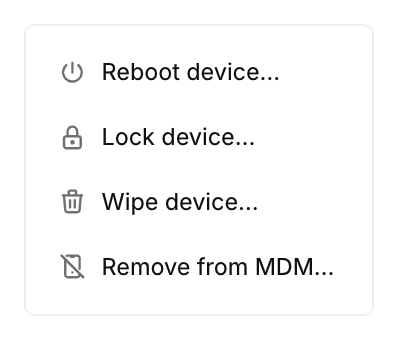
When a managed device is lost, stolen, or coming back from someone who’s leaving, you can lock, wipe, or restart it from the Oneleet Dashboard. Workspace admins send these from a device’s Manage device menu.
| Action | macOS | Windows | Linux |
|---|---|---|---|
| Lock | Yes | No | No |
| Wipe | Yes | Yes | Yes |
| Restart | Yes | Yes | Yes |
A device that’s offline gets the command when it reconnects. Until then, the command shows as Pending on the device’s Activity tab.
Lock a Mac
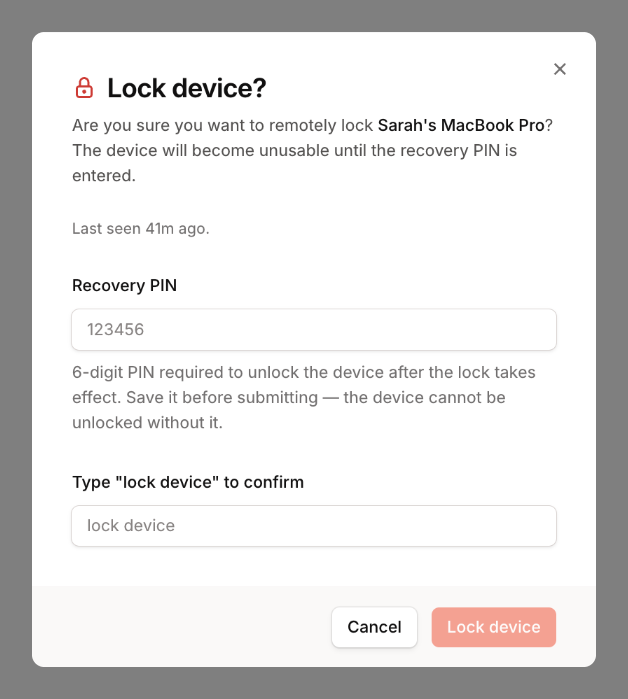
Section titled “Lock a Mac”A locked Mac can’t be used until someone enters the recovery PIN. Lock a Mac to protect its data without erasing it.
- Open the Mac and choose Manage device > Lock device….
- Enter a six-digit Recovery PIN.
- Type
lock deviceand click Lock device.
Wipe a device
Section titled “Wipe a device”A wipe can’t be undone.
- Open the device and choose Manage device > Wipe device….
- Choose a Wipe method.
- For an Apple MDM wipe, enter a six-digit Recovery PIN. For a selective wipe, list the Target paths, one per line.
- Type
wipe deviceand click Wipe device.
| Wipe method | Platform | What it does |
|---|---|---|
| Apple MDM wipe | macOS | Erases the Mac. The recovery PIN unlocks the Mac afterward. |
| Factory reset | Windows | Resets the device to factory settings. |
| Cryptographic wipe | Linux | Erases the disk’s encryption keys, or overwrites the disk if that fails. The operating system has to be reinstalled. |
| Selective wipe | All | Deletes only the file paths you list. The files aren’t securely erased. |
Restart a device
Section titled “Restart a device”- Open the device and choose Manage device > Reboot device….
- Edit the Message to the end user, or keep the default.
- Type
reboot deviceand click Send reboot command.
The person using the device sees the message and has five minutes to save their work. Force immediate reboot skips the wait.
On a Mac enrolled in your Oneleet MDM whose agent is missing or too old for remote tasks, Apple MDM restarts it immediately, with no message.
Act on several devices at once
Section titled “Act on several devices at once”On the Devices tab, tick the devices and choose Reboot, Lock, or Wipe. The dialog lists the devices it will skip and asks for the same details as the single-device action. A bulk lock uses one recovery PIN for every Mac, and a bulk wipe offers Full wipe or Selective wipe. To confirm, type the phrase the dialog shows, such as wipe 3 devices.