Device policies and secure defaults
A device policy is the set of security settings Oneleet enforces on managed devices, such as how soon the screen locks and whether the disk is encrypted. You set one policy per operating system for the whole workspace, and override it for single devices.
Policies are available for macOS and Windows. Workspace admins edit them.
Start with secure defaults
Section titled “Start with secure defaults”The first time an admin opens Devices after Oneleet MDM is turned on, Oneleet offers a recommended baseline.
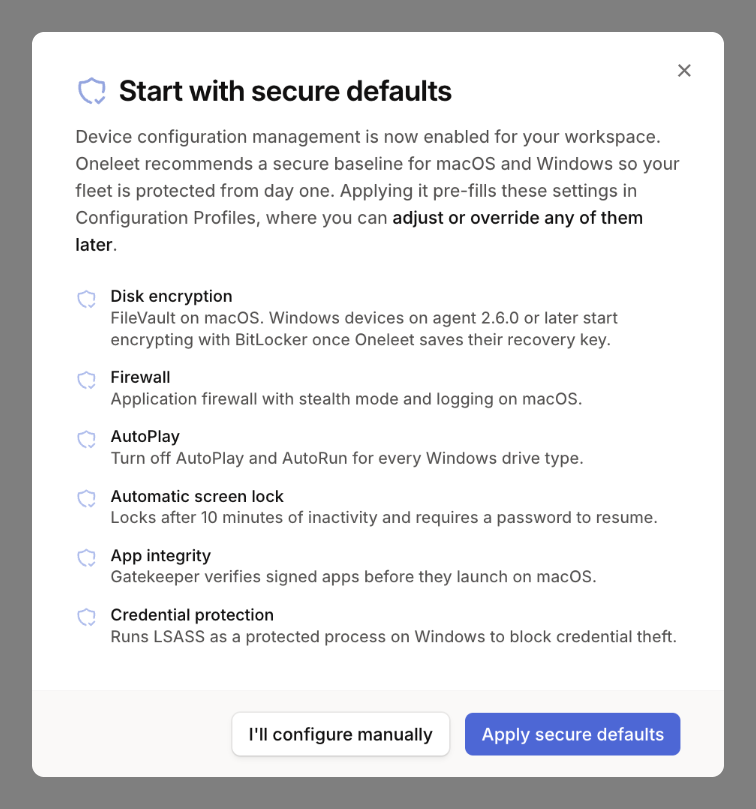
- Apply secure defaults fills in the baseline for each operating system that doesn’t have a policy yet. You can change any value afterward.
- I’ll configure manually leaves the policy empty.
The offer isn’t repeated once you choose. To use the baseline later, enter these values yourself:
| Setting | macOS | Windows |
|---|---|---|
| Disk encryption | FileVault required | BitLocker required, where BitLocker management is on |
| Screen lock | After 10 minutes, password required immediately | After 10 minutes, sign-in required immediately |
| Firewall | On, with stealth mode and logging | Not set |
| Gatekeeper | On, allowing identified developers | Not applicable |
| AutoPlay | Not applicable | Off |
| LSA protection | Not applicable | On |
Set the workspace policy
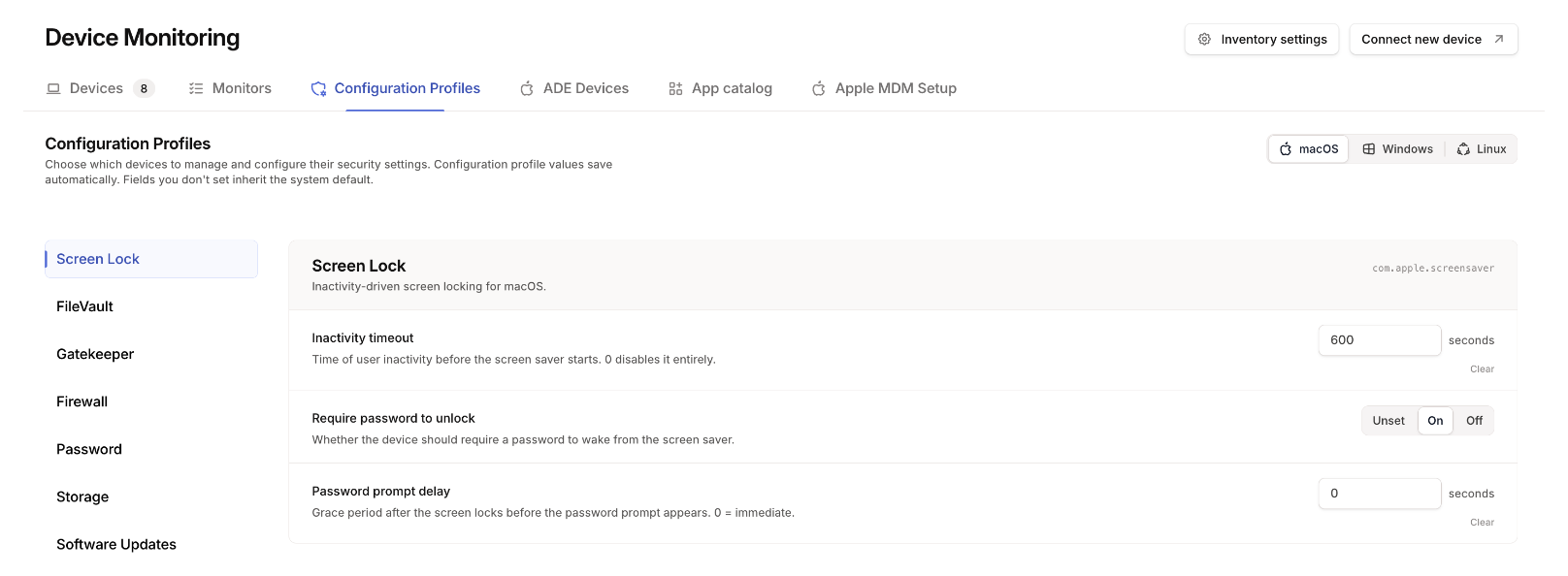
Section titled “Set the workspace policy”Go to Devices > Configuration Profiles and select macOS or Windows. Values save as you change them. A setting you leave unset uses the system default.
| macOS section | What it controls |
|---|---|
| Screen Lock | Inactivity timeout and when a password is required |
| FileVault | Disk encryption |
| Gatekeeper | Which apps are allowed to open |
| Firewall | The macOS firewall, stealth mode, and logging |
| Password | Login password length, complexity, age, and history, on macOS 15 or later |
| Storage | External drives and network shares |
| Software Updates | The macOS version Macs must run |
| Windows section | What it controls |
|---|---|
| Screen Lock | Inactivity timeout and when sign-in is required |
| Removable Media | Removable storage |
| AutoPlay | Whether Windows opens anything when a drive or device is connected |
| BitLocker | Disk encryption, where BitLocker management is on |
| LSA Protection | Protection of the Windows credential process against credential theft |
| Feature Updates | The Windows release devices run |
| Update Restart Behavior | Active hours, and whether people can pause updates |
Override a setting for one device
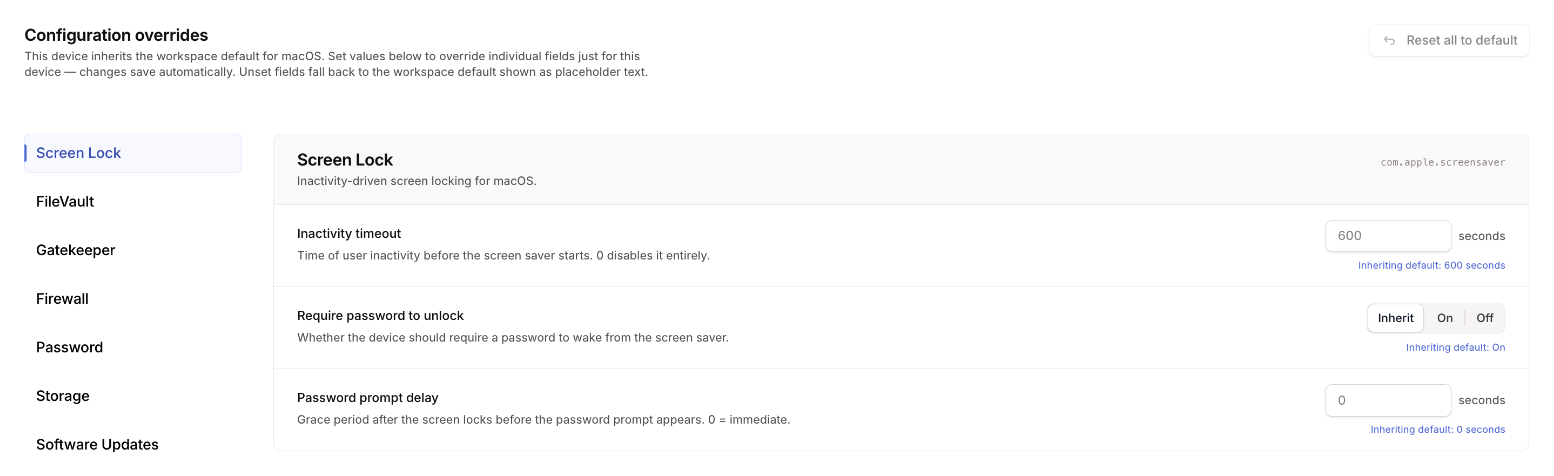
Section titled “Override a setting for one device”Open the device, go to its Policies tab, and set the values that should differ under Configuration overrides. Everything else follows the workspace policy. A Mac’s Password settings can only make the workspace’s rules stricter, as described below.
Require stricter passwords on some Macs
Section titled “Require stricter passwords on some Macs”To require stricter password rules on some Macs, such as the Macs in your PCI DSS cardholder data environment, set them in the Password section of each Mac’s Policies tab.
A Mac’s password requirements can only be stricter than the workspace’s. For each requirement, the Mac gets the stricter of the two values: the longer minimum length, the larger number of special characters or remembered passwords, the shorter maximum password age, and any requirement either one turns on. A value on the Mac that’s weaker than the workspace’s has no effect, and the Policies tab says which requirements the workspace value applies to instead.
Only the workspace that manages the Mac through Oneleet MDM can change its password requirements.
Length and complexity rules apply the next time a password is changed, so existing passwords keep working until then. A shorter maximum password age makes passwords older than it expire right away, so the user must change their password at the next login.
When changes take effect
Section titled “When changes take effect”A change reaches devices that are online as soon as you save it, or within about 15 minutes on older versions of the agent. Offline devices get it when they reconnect. On Windows, the screen lock timeout and LSA protection apply after the device restarts.
If someone changes a managed setting on a Windows device, the agent changes it back within five minutes and records Windows registry setting corrected in the device’s activity log. If the same setting keeps being corrected, see A Windows setting keeps changing back.