Device checks
The Oneleet Agent checks a short list of security settings on each device. Each check in the agent has a matching device monitor in the Oneleet Dashboard. The agent lists them by what should be true, such as Disk Encrypted and Firewall Enabled.
| Check | macOS | Windows | Linux | What passes |
|---|---|---|---|---|
| Disk encryption | Yes | Yes | Yes | The system disk is encrypted |
| Firewall | Yes | Yes | Yes | A firewall is on |
| Screen lock | Yes | Yes | No | A password is required within 10 minutes of inactivity |
| Gatekeeper | Yes | No | No | Gatekeeper is on |
| System Integrity Protection | Yes | No | No | SIP is on |
| Antivirus | No | Yes | No | Microsoft Defender or another antivirus is active |
The dashboard has one more monitor, dormant devices, with no check in the agent.
Fix a failing check
Section titled “Fix a failing check”Open the Oneleet Agent and select a check under Needs your attention. The agent shows the steps for your operating system. For some checks, Fix it for me changes the setting for you.
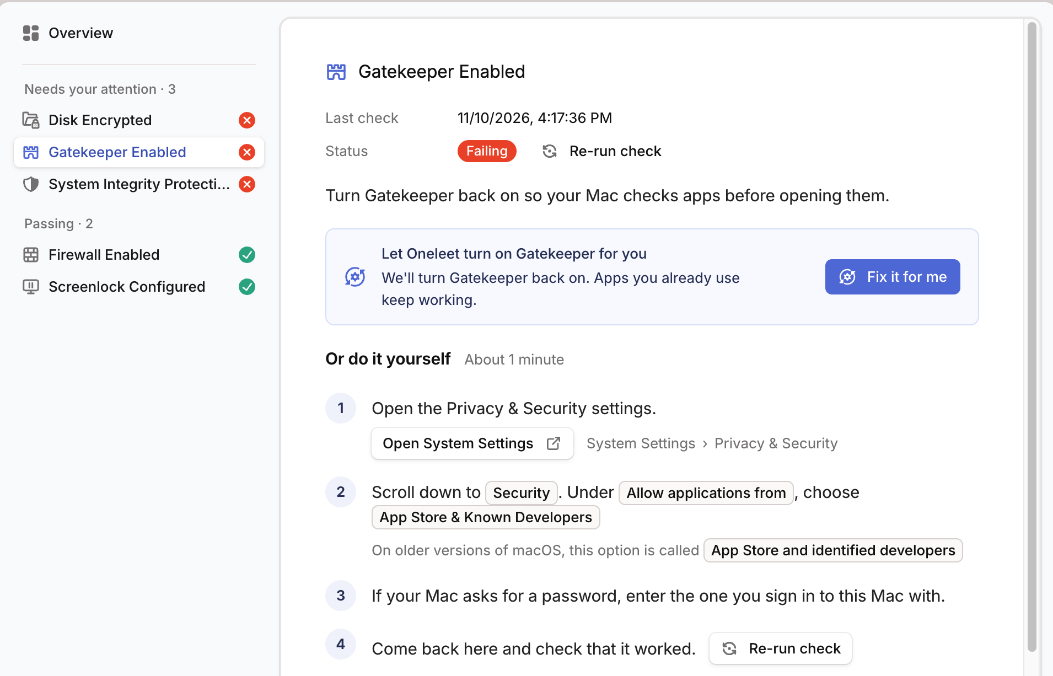
After you change the setting, click Re-run check.
In a workspace without Oneleet MDM, admins can also have the agent fix a failing check from the Oneleet Dashboard. On a device’s Monitors tab, choose Start auto-fix. For several devices, select them on the Devices tab and choose Run automatic fixes. Devices that have no failing check the agent can fix, or run an agent older than 2.2.0, are skipped. With Oneleet MDM, enforce those settings with device policies instead.
When checks run
Section titled “When checks run”The agent runs its checks every 5 minutes. The dashboard’s monitors run about once an hour, so a fix shows as passing in the agent first and in the dashboard up to an hour later. To update the dashboard sooner, open the monitor and click Rerun monitor.
What each check requires
Section titled “What each check requires”Disk encryption
Section titled “Disk encryption”- macOS: FileVault is on.
- Windows: BitLocker is on and the system drive is fully encrypted. BitLocker needs Windows Pro, Enterprise, or Education.
- Linux: the root filesystem is encrypted.
Firewall
Section titled “Firewall”- macOS: the built-in firewall is on, or a supported third-party firewall is active.
- Windows: Windows Firewall is on for the domain, private, and public profiles.
- Linux: UFW, firewalld, nftables, or iptables is enabled.
Screen lock
Section titled “Screen lock”The device has to ask for a password within 10 minutes of inactivity, on battery and when plugged in.
On macOS, in System Settings > Lock Screen, add two settings together: the time until the screen saver starts or the display turns off, whichever comes first, and the Require password after screen saver begins or display is turned off delay. The total has to be 10 minutes or less. A timer set to Never doesn’t count.
The agent counts the Require password delay from version 2.4.5. The dashboard monitor counts it from December 1, 2026, for Macs on agent 2.4.5 or later. Until then, the monitor checks only the timer, so a Mac can pass the monitor while the agent shows the check failing. To avoid a failure on that date, shorten the delay now in System Settings > Lock Screen, or in the MDM profile that sets it.
On Windows, any one of these counts: the machine inactivity limit, a screen saver that asks for sign-in when it ends, or sleep with sign-in required on wake.
If the agent can’t read the settings, for example because nobody is signed in, the check fails and says it couldn’t verify them. Sign in to the device and run the check again.
Gatekeeper
Section titled “Gatekeeper”Gatekeeper is on. It’s the macOS feature that checks apps before they open.
System Integrity Protection
Section titled “System Integrity Protection”SIP is on. The dashboard monitor covers Macs on agent 2.3.6 or later. Other devices show Not applicable, which doesn’t confirm that SIP is on.
To turn SIP back on, start the Mac in macOS Recovery:
- Apple silicon: shut down, then hold the power button until startup options appear. Choose Options, then Continue.
- Intel: restart and immediately hold Command (⌘) + R.
Then choose Utilities > Terminal, run csrutil enable, and restart. The agent reports the new status at its next check. There’s no automatic fix for this check.
Antivirus
Section titled “Antivirus”Microsoft Defender or another antivirus registered with Windows Security is active.
Dormant devices
Section titled “Dormant devices”A device fails the Oneleet Agent devices aren’t dormant monitor when it hasn’t checked in for more than 30 days, or when its agent is older than version 2.2.0.
If the device is still in use, turn it on and make sure the agent is running and connected. If its agent is older than 2.2.0, install the current version. If the device is no longer in use, delete it.